


Sign off for the day like a Pro
Have you been in a jewelry shop at the time of their closing for the day? It’s quite dramatic. There is a sudden spurt of activity and in that hustle, all the valuables from the displays, get checked, packed, and moved to the vault (I guess), and soon the place that oozed opulence looks dreary! They have a well-coordinated closing ritual.
Most of us also have some sort of closing ritual that we do when we close for the day, but if it is thoughtfully planned and regularly done, it can provide invaluable benefits.
The first step is to write down the actions that you would like to do at the end of every day. You are doomed if you thought you would remember! You might want to write that at a place that is easily accessible – a spreadsheet on your computer or a listing app on your mobile. What you write in it is very specific to you but here are few ideas:
- Fill in the timecard, if you are into this.
- Update the journal (you should maintain one) where you record whatever was done on a day. You may want to reflect on how the day went and note down any new ideas as they occur to you in your to-do list.
- Look at the next day’s calendar.
- Look at the “Drafts” folder for any mail that was mistakenly remained unsent.
- Update your networking document with any new connections that you made
- Check if your backup service is running all right.
- Shut down a computer.
Start with a set of actions and keep tuning it as per your needs. We then need to stop our work a few minutes before, to do these closing actions.
I had earlier written a post about having a morning ritual and if you have one, here is an interesting idea – During the morning ritual, you may want to create day-specific closing actions, if any. This will give you a fail-safe mechanism to not miss some important action in the chaos of the day!
Subscribe to my newsletter, at bottom of this page, to get stories like this and more, directly in your inbox!
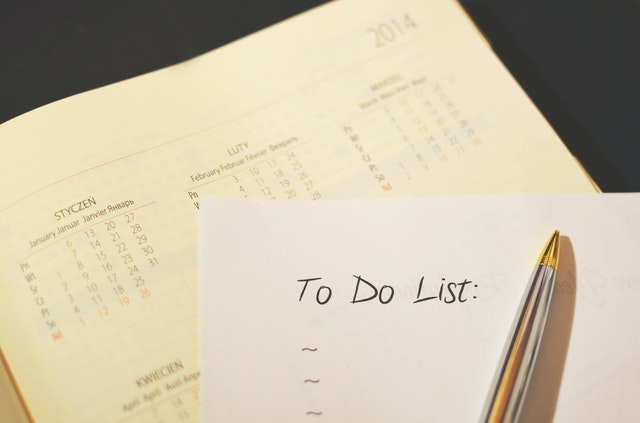
Do You Track Your Delegations?
Recently one of my friends said this on LinkedIn in response to my post on the to-do list – ”I have been using a spreadsheet and it’s working well so far. (I) Am getting peaceful sleep unlike earlier when it used to always bother me that am missing something important. But it’s growing bigger mostly with ones (I) am dependent on others to complete.”
He is talking about two problems, but let’s focus on the problem of tasks dependent on others. This is a common experience when you have a team of directs and contractors working for you.
I have heard this invariably from people who are into managerial roles. The situation actually gets worse when you double up the managerial role with an individual contributor’s role. When you take out some time to get deeper into a problem, you are guaranteed to be missing on pushing your teams and contractors and overall losing on your productivity.
Let’s deduce a solution:
You will say that why do people need reminders. Why don’t they just do whatever is asked of them and deliver”
The answer is easy. They too are humans. They also get overwhelmed by the work they get on their plate. They also get distracted by changing priorities and scope.
The next question is then what is in my hands to insulate my productivity from the chaotic work practices of others. The answer is – give them enough and timely reminders.
The next question is then how do I remember what I have to remind others about. And we get our solution to this problem:
- Maintain a list of delegations for which you are dependent on others. Note that the dependency could be hierarchical up or sideways as well. Your superiors or peers also need reminders, so don’t forget to include even those delegations in your list.
- Review this list of delegations at least once every day, typically in the morning so that you could send reminders early in the day and get them to work on your tasks.
- Keeping this list of delegations separate from your regular to-do list will make it easy to quickly process this list and get back to your primary to-do list. Also, you should be sensitive to the fact that most often the actions from your to-do list flow into the list of delations and vice versa.
As I always say, no matter how many management techniques you apply to get work done out of delegations, one sure thing that always works and is a must is – enough and timely reminders!
(Subscribe to my newsletter, at bottom of this page, to get tips like this and more, directly in your inbox!)
(Originally published at https://timesofindia.indiatimes.com/blogs/stay-organized-stay-productive/do-you-track-your-delegations/ on March 22, 2022)

Do you trust your browser bookmarks?
In an ice breaker session with one of my clients, I had asked her if she used browser bookmarks. She said of course she used it but only in one way. She bookmarked her stuff but never referred them, just because they were way too many and it was too time-taking to locate them. Essentially she had lost trust in the bookmarks system itself.
I could perfectly understand it because I myself had gone through that phase and I know this is the problem with even others. Let’s see how to deal with this so as to make the browser bookmarks system one of the tools in your productivity toolbox.
We know how browser bookmarks help us. In one click you could start your work that is planned on that web page. Bookmarks do a great job in saving your time when compared with doing a Google search to locate the web page that you want. So this is well appreciated.
But what commonly we do not appreciate is that bookmarks eliminate the risk of abandoning the work just because you couldn’t locate a web page or worse, not even attempting a work just because you are certain that you would not locate the web page in the time you have at your hand.
So here is the way to build a trustworthy bookmarks system for yourself. I will refer Chrome browser here but I am sure these features should be available in any modern browser.
CREATING A BOOKMARK: LET’S SEE THE BEST WAY TO CREATE A BOOKMARK
- While browsing, develop a habit of asking yourself a question if you would need to visit the webpage ever again, and if the answer is yes, you should bookmark it before closing it.
- Get familiar with the shortcut to bookmark a tab. Chrome offers a star icon. Click the star icon to bookmark the current page. You will get a dialog where you should be watchful to select a folder to put your bookmark in. The more button on the dialog allows you to create or select a folder.
- Here is a Pro tip: Once the bookmark is saved, click the star icon again to open the Edit bookmark dialog. Look at the name of the bookmark by which it was saved before and edit it to customize it for you. Describe the way you understand the page. Use the right words that describe the page. Press the Done button to save your changes.
LOCATING A BOOKMARK: LET’S SEE NOW HOW TO REFER TO THE CREATED BOOKMARKS
- Once you have a proper and meaningful folder structure to organize your bookmarks, it is very easy to locate a bookmark.
- Here is a Pro tip: Keep moving the folders that you use more often to the top. Also, keep moving the bookmarks that you visit more often to the top within a folder. This will reduce your look-up time. You could move a folder or a bookmark simply by drag and drop.
- In the worst case, which would be not so uncommon, when you do not remember what folder you had saved your bookmark in, go to the hamburger menu and then to the Bookmarks menu and select Bookmarks Manager. Bookmarks Manager offers a search where you could locate your bookmark using keywords.
- Once you locate your bookmark, you could always right-click on the link and select the Show in folder option to know where the bookmark was kept, for future use.
- Bookmarks Manager also allows reorganizing your bookmarks and bookmark folders with a lot of ease. On certain days when you are using your bookmarks a lot, you could even pin the bookmarks manager tab so that you don’t have to open it quite frequently.
That’s all to it. This system will efficiently hold and allow quick access to thousands of your bookmarks and make you look like a magician who could produce the required page even before saying abracadabra!
Subscribe to my newsletter, at bottom of this page, to get stories like this and more, directly in your inbox!
Know your (Chrome) browser better for better Productivity – 2
Recently one of my friends shared a cartoon mocking at intricate assembly process of Ikea products, which I too experienced, now that Ikea is in India! But after few attempts, I realized that assembly of Ikea products could actually be fun only if we have the right toolkit.
The same is true when you are doing something in your web browser. If you have the right Apps opened and ready, doing that activity would not only be productive but be pleasant also. You could do that with Chrome (and possibly other browsers too).
The idea here is to create a small cluster of bookmarks of related websites together into a folder and open all the links together in a single action.
I have a cluster of websites that I need when I write my blogs, such as WordPress, Headline Analyzer, Aweber, My website, Pexels, and Medium.
My morning ritual cluster has bookmarks to Dilbert, Hagar, E-NewsPaper, Quora questions, Less frequented E-mail websites, etc.
I also have another cluster of tech websites that I visit once in a while to stay current.
This is how we make it and use it.
- Create a folder on the bookmarks bar. If your bookmarks bar is not visible, go to the top right hamburger menu of Chrome and then to the Bookmarks menu and select the Show bookmarks bar menu option.
- Right-click (control-click on a Mac) on the Bookmarks bar and select Add folder. Give a short and suitable name and save.
- Go to the hamburger menu of Chrome and then to the Bookmarks menu and select Bookmarks Manager.
- Move all bookmarks of your interest into that newly created folder by simply drag and drop. This is how you get your cluster ready.
- Now when you are ready to do your “assembly”, simply right-click (control-click on a Mac) and select the “Open all 8” option. The number here indicates the number of websites in your cluster. And boom! All links open in those many tabs and you are ready to crank through your job!
Subscribe to my newsletter, at bottom of this page, to get tips like this and more, directly in your inbox!
(featured image: Photo by Anete Lusina from Pexels)
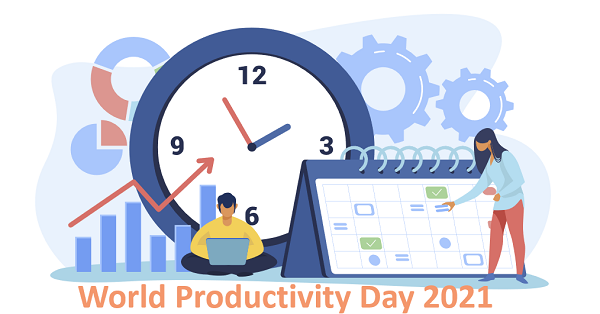
Word Productivity Day 2021
Today is World Productivity Day – the day to remind you to use your energies wisely and lead a productive and fulfilling life. Here is a compilation of productivity tips from contributors, for the occasion:
Have a time slot, say, 9 to 10 AM, permanently blocked in your calendar, to develop a routine for yourself for some activity that is most important to you, such as writing, learning, etc.
****
Have a single master calendar that integrates all the others so that you do not miss events although distributed across them.
****
Use appointment scheduling software, such as Calendly, along with your calendar to avoid the hassle of back-and-forth emails to find a mutually convenient time slot.
****
Explore and invest in a tool/methodology that suits you to manage your work. Some of the current favorites are Trello, physical Kanban boards, Notion, Omnifocus, GTD, etc.
****
Procure a few books and magazines in audio form so as to cover some reading along with physical activity, such as evening walk, cleaning, cooking, gardening, etc.
****
Utilize time away from the computer by drafting content, such as emails and blog posts using speech-to-text.
****
Use a digital-first strategy to create any content or diagrams, rather than first making it on paper.
****
Pin regularly needed applications on the Windows taskbar to save time in looking for them.
****
Have only selected Apps on the home screen of your smartphone.
****
Never miss bookmarking those interesting websites and articles which you know you would look for them later.
****
Don’t forget to reserve a slot of off-screen activity to recharge yourself.
****
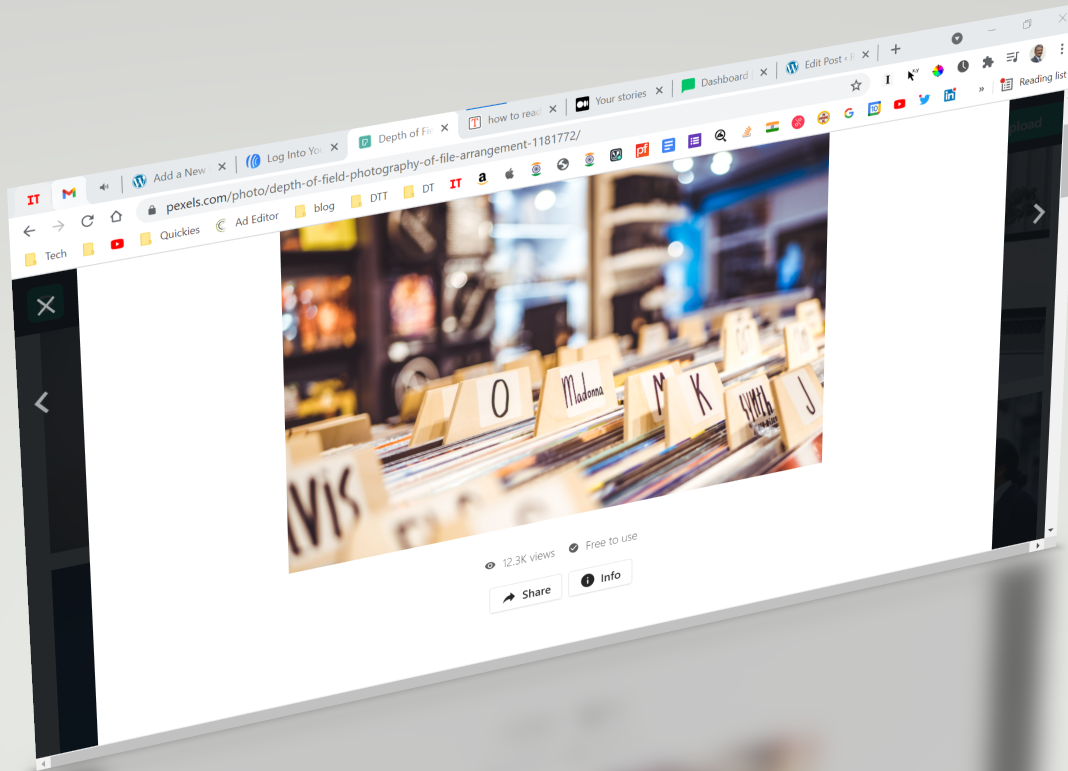
Organize Your Browser Tabs for Better Productivity
Web browsers are integral to our day-to-day work, and using them smartly can significantly boost productivity. In my previous post, I talked about making the most of the bookmarks bar by keeping frequently used apps just a click away.
Today, let’s dive into browser tabs, specifically in Google Chrome.
The Problem: Accidental Closures
Modern browsers allow us to open multiple tabs, making it easy to multitask or keep an eye on dynamic content—like live updates, dashboards, or music streams—while working in other tabs. However, there’s a common frustration: we often accidentally close an important tab or the browser itself, only realizing the mistake too late.
The Solution: Pin Your Tabs
If there’s a tab you need to monitor or keep open at all times, pin it. Pinning a tab tells Chrome that it’s important, ensuring it won’t close accidentally.
Here’s how:
- Right-click on the tab you want to keep.
- Select “Pin” from the menu.
The pinned tab will:
- Move to the left side of your browser.
- Lose the close (“x”) button, preventing accidental closures.
- Automatically reopen the next time you launch Chrome, alongside a blank tab.
The tab stays pinned until you:
- Unpin it (right-click and select “Unpin”).
- Close it intentionally using the right-click menu.
Use Case: Tabs You Need Perpetually
Certain sites are worth pinning permanently—your favorite music streaming site, email inbox, task dashboard, or online radio station. Pin them once, and they’ll always be a click away.
Recovering Closed Tabs: No Panic Required
What if you accidentally close an unpinned tab? Chrome’s got your back:
- Go to Chrome’s History menu (or use the shortcut
Ctrl+Shift+T). - Select your last closed tab or browse the list of recently closed tabs.
Why not just type the link again? Because reopening a tab from history restores it to its exact state—including its back and forward navigation history. It’s as if you never closed it.
Final Thoughts
Browser tabs are more powerful than they appear. By pinning essential tabs and knowing how to recover closed ones, you can save time, avoid frustration, and stay productive.
What tabs do you keep pinned? Share your favorites below!
Subscribe to my newsletter, at bottom of this page, to get tips like this and more, directly in your inbox!