


How to Bulk Copy-Paste With the Clipboard
Copy-paste brings speed to digital content creation and the idea is as old as the wheel – we hardly notice doing it. Our mind moves faster than what our hands can move on the keyboard, so copy-paste makes up for the gap. Copy-Paste works because of the clipboard system provided by the OS.
But how many times does it happen to you when you lose some massive copied content in the clipboard, just because you accidentally copied another content that overwrote the clipboard, worse when it was just one word that did it – bad bargain! The other problem situation is when you want to copy-paste several items as then you will have to keep switching between the two Apps.
If you use MS Office, you can do it better by activating the MS Office clipboard and keep the last 24 items in it for pasting elsewhere. The clipboard gathers the items when you copy contents not just in MS Office Apps but even in all the other Apps running on your computer. The menu option for the clipboard is available on the Home Tab and is in the leftmost group of all the MS Office Apps.
Once equipped with this bigger clipboard you could go copying spree in the source material which could be some document or a webpage or an e-book and then come back and paste as you wish.
Subscribe to my newsletter, at bottom of this page, to get tips like this and more directly in your inbox!

How to draft Emails fast using templates
Mail templates save time when you frequently send emails with similar content to many people or to the same person at different times. The idea here is to draft a mail with a subject, content, and attachment (if needed) and save it as a template. Now next time if you have to send that email to someone, you would use a template instead of typing it again or look for old emails to copy from. Once you get your first draft ready based on the template, you could always personalize it with the recipient’s name and any other details and send it.
Some examples of mails that could use templates are say sending an invoice, sending periodic reports, sending instructions to resolve a problem, sending requirements of a job to get done, making announcements in your network, links that you end up sending more often, etc.
The obvious benefits are, firstly, you aren’t repeating the whole effort to get the right phrases and words, secondly, there is no risk of missing out on sending a vital detail, or a recipient or attachment(s). I use templates in Gmail and Outlook.
For Gmail, you will have to enable the service in the settings first. The options to create, save, update, insert and delete templates will become available in the More hamburger menu in Compose window. See more details here. For Outlook, you will have to save a draft of the template as OFT file and then use it from Home Tab using New items > More items > Choose from. See more details here. If you use any other Email application, look for templates in its product documentation.
A job that would otherwise take anything between ten minutes to half an hour suddenly would take just two minutes. It always helps to convert more and more of your tasks to two minutes tasks, as then you tend to do it, right at the moment than deferring it and risking forgetting to do it. This is one of the big secrets of personal productivity.
Subscribe to my newsletter, at bottom of this page, to get tips like this and more directly in your inbox!
(featured image: Photo by Nicole Michalou from Pexels)
How to not fail at managing your appointments by integrating all your calendars into one
If you are using multiple email services, which is quite common, you will have appointments in more than one calendar App. One of your organizing activities should then be to configure to integrate all the calendars into just one. Also, the integrated calendar should also be made available on all the mobile devices that you use. This will help you to have just one place to work on your appointments. You will not commit to conflicting appointments and you will not miss an important meeting just because you overlooked a calendar on a day.
The most popular calendar services include, Outlook and Google and they offer a good level of integration capability but there are others who too offer it. You need to decide on one Calendar App that you wish to see your integrated calendar in. That would be your master calendar. I would recommend Google.
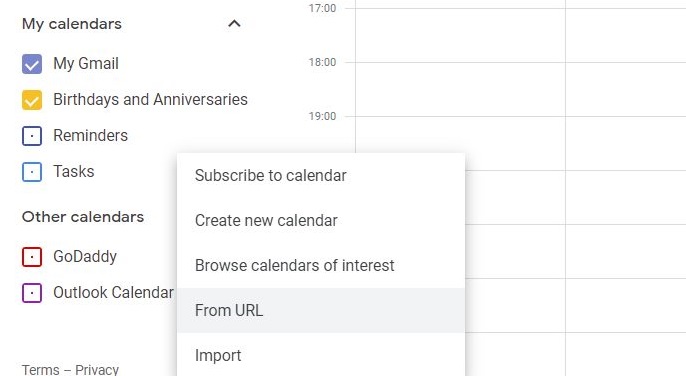
To integrate your other Calendars into Google Calendar on your computer, you will need to select “Add other calendars” menu and choose “From URL” option (see the featured image). Add URLs of your all other calendars, one by one to integrate each of them.
Here is a link to find the URL of your Outlook calendar (you will find a similar procedure for other calendars too). Google Calendar allows you to choose colors for the calendars so that you have an indication about the source of any appointment when you see them together.
It may take some time to synchronize the calendars, but soon you will see all the appointments from other calendars in the Google Calendar App. Install Google Calendar App on your mobile devices and verify that you can see all your appointments, even there.
Before closing, let me repeat the golden rule of the calendar, never use your calendar as a to-do list for it fails miserably as you would “snooze” those “task” appointments more often, and if that is not enough very soon you start ignoring your calendar reminders all together and you know that is not good!

What is the best way to make agendas for productive meetings?
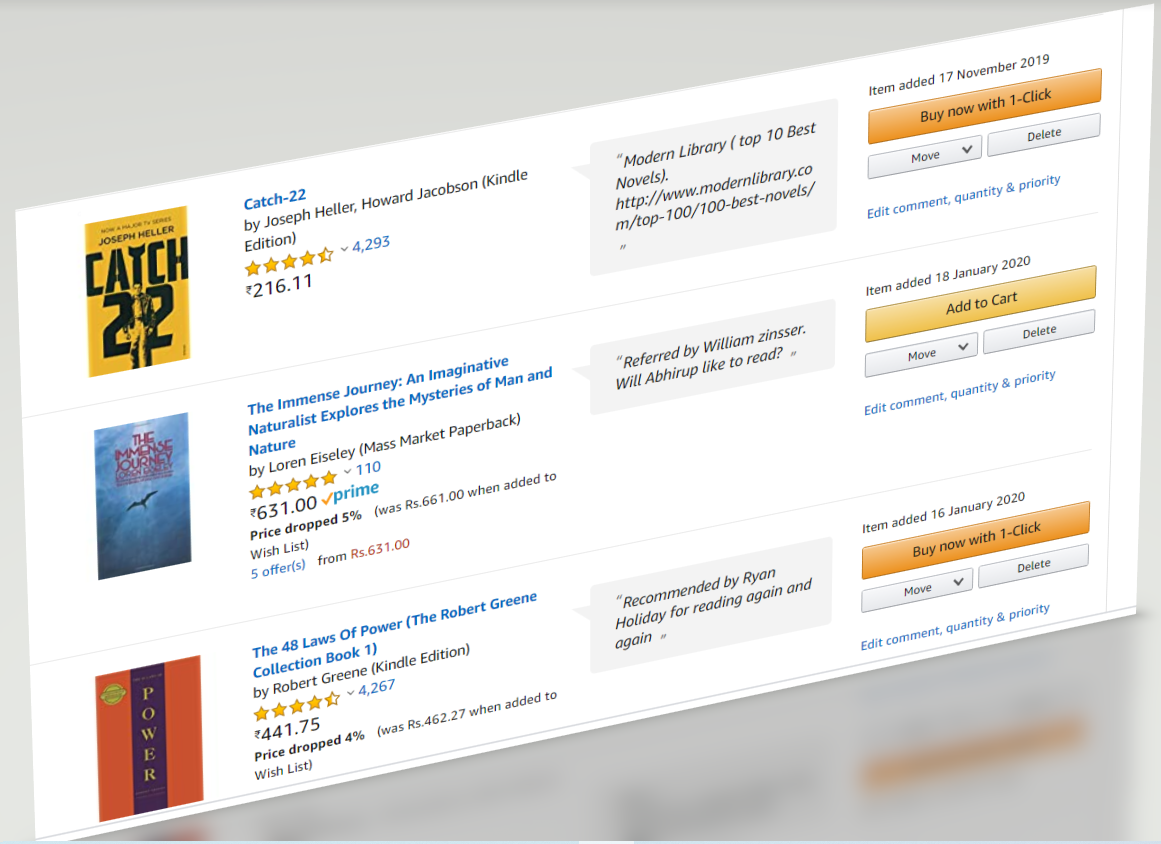
What’s Your Hobby? Reading Books or Just Buying Them?
Tsundoku (Japanese: 積ん読) is acquiring reading materials but letting them pile up in one’s home without reading them.Source: Wikipedia
How can you be more productive with reading books
In my earlier posts, I had delved into, how we collect the relevant content for our reading and how we organize it for “reading later App”. Still, a question, probably most difficult, is unsolved and that is when to read it. Reading small posts is one thing but reading articles of a few pages or books is another. Thus, most of us need a reading ritual to be successful at it. Consistency is the key here. You should include reading as part of your daily schedule. Let’s see how!
If you allot a prime time slot (I mean when you could do other priority works) to reading, you will end up skipping reading and if you give a time slot when you would be tired, you couldn’t go beyond the first page itself. You have to find something in the middle.
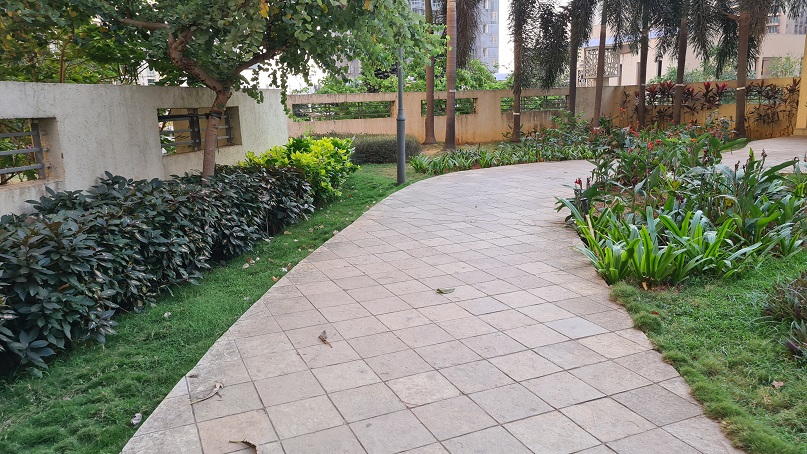
A great trick here is to read along with one of your chores. The best one is to read along with pacing in a non-crowded and familiar place, typically in the evenings. You should choose a place which you could walk even blind-folded like it could be pacing in your courtyard or lawn. I pace in my thirty feet long balcony of my condo or the walking track of our community (featured image). Try reading for an hour every day. Physical activity will keep you alert with your reading and your body will get some exercise too, which itself is in short supply nowadays.
A pro tip here is to track your progress. You will like to see how a small effort, but done regularly, makes such a big difference. Don’t do anything big; just record the page number where you stopped each day. Also don’t forget to check your health App showing number of steps walked.
Either just walking for physical exercise or just sitting to read might appear as a wastage to a time thrifty mind, but both together starts justifying the time spent. Also, somehow the open air and nice evening time make our mind receptive to reading. Happy reading!