


Stay Current with Google Alerts
We like to stay current on various topics of our interest by keeping a tab on web sources. Google Alerts is a free tool that could help us with it. Google Alerts, in its own words, “monitors the web for interesting new content”. Don’t worry if someone tells you that Google Alerts is meant only for marketers.
Let’s say, I want to know about Machine Learning content, as soon as someone publishes it. I would configure an alert for Machine Learning. Google will then start sending me emails regularly with links to Machine learning, from the latest content from news, blogs, websites, Google books, etc.
It is very easy to configure. You need to provide the search words with the usual Google search syntax. You could additionally provide, language, region, quantity (How many), and frequency (How often) options, although the best strategy is to leave the default settings. As you make these settings Google Alerts generates a preview dynamically. If you think the results are too few, you may like to set “how many” to “All Results”. You could create as many alerts as you want. Read more about creating alerts here.
A life hack to process a long-winding email with alerts is to do it in two steps. The first step will be to simply skim through all the links and identify the content which might be worth “reading later” and “save” them to Instapaper. The second step will be to read them in Instapaper when you have the suitable time & energy level to do so. Of course, don’t forget to bookmark the good ones into your browser for future reference. A side benefit is to come to know about informative websites, related to our topics of interest to follow them up systematically.
There should be no dearth of creativity in creating your alerts. It is equivalent to doing your favorite search every day, automatically for you. You could create alerts for topics, companies, authors, thinkers, or even your own name.
How to NOT miss reading good content
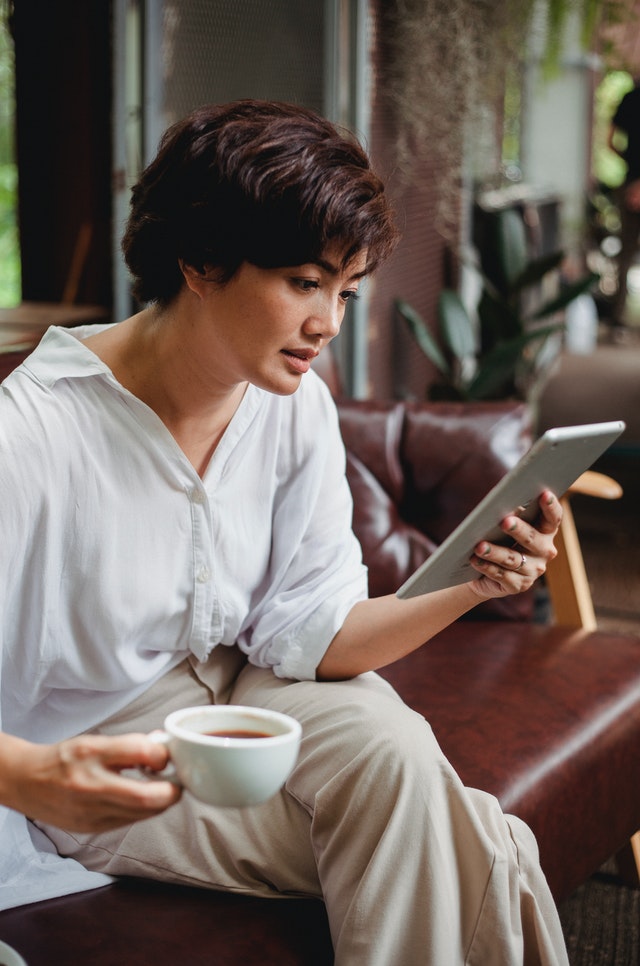
Imagine this: you glance at your mobile device and discover a flood of notifications. Among them are LinkedIn notifications. Swiftly sifting through them, you pause at a post containing a link to a lengthy and intriguing article. However, your original intention was to simply clear the notification, and now you find yourself unable to dedicate the time to read those ten pages and return to your notifications. In such situations, it is common to promise yourself that you will revisit it later. Unfortunately, when leisure time eventually presents itself, we often forget what we had planned to read, resulting in missed opportunities to consume valuable content. It’s easy to understand the significance of reading a compelling article or the disappointment of missing out on one.
The same scenario unfolds with the constant influx of content we receive via email from friends and colleagues, newsletters, and various social media platforms. Moreover, once you begin reading an article, you’ll notice that almost every piece of online content is laden with hyperlinks leading to other related material. Consequently, it becomes overwhelming to keep track of all the cross-referenced content.
This is where “Read Later” apps come into play, aiding in the management of your reading material. Two popular apps in this category are Instapaper and Pocket. While both apps offer similar features, I personally prefer using Instapaper. Here’s how Instapaper works:
First, install Instapaper on all your mobile devices that you use for reading. Whenever you come across a webpage you wish to read later, simply “SHARE” it to Instapaper. On computers, you can visit the Instapaper page (https://www.instapaper.com/u) and use the “Add Link” option in the top menu. To make the process even more convenient, you can install the Instapaper Chrome extension. Once installed, you need only click on the Instapaper extension icon in the Chrome address bar to save an article for reading later. Regardless of the device on which you save an article, it will be accessible on all your other devices as long as you are logged into the same account.
In some cases, certain social media apps have their own in-app readers that load articles within the app instead of the browser. Even in such instances, you can share the article to Instapaper using the share menu. Alternatively, you can open the article in your browser and then save it to Instapaper.
When you finally find a longer window of time for reading, open the Instapaper app on your mobile device or visit the Instapaper homepage in the Chrome browser on your computer. There, you can peruse all the articles you have collected from all your devices. Instapaper’s own reader provides a pleasant reading experience by eliminating distracting banners around and within the article, presenting a linear format for easy consumption. However, if you prefer the same vibrant experience while reading, you can also open the article in the browser through Instapaper.
One of the most interesting features is the weekly summary of top content. 1. It helps you stay on top of what’s trending among readers. 2. And occasionally, you get access to articles that are usually behind a paywall.
Additionally, Instapaper offers a “Speak” function, enabling you to listen to the saved articles if you prefer audio consumption.
After reading an article, it is advisable to delete it from Instapaper to declutter your reading list. In certain cases, you may choose to bookmark the article in your browser for future reference.
Adopting this habit not only enhances your reading organization but also boosts your productivity by splitting your workflow into two tasks: 1) scanning your inputs and saving articles for later reading, and 2) dedicating a focused time slot with minimal distractions to read the articles. You can utilize small time slots throughout your day to clear your inputs and reserve longer, uninterrupted periods for reading.

The Morning Routine Blueprint: Steps to Design Your Perfect Start to the Day
Do you know how Jeff Bezos starts his day? Well, I don’t know. Frankly, I don’t care also. All of us have different body clocks and different profiles, no one knows you better than yourself, and so you are the best judge of when and how you start your day. I know you are wondering, where this is leading to. Hold! I am coming to the point. I want to talk about rituals at your desk, at start of your day and those matter to you:
The first step in your morning routine should be to check your calendar to get an idea of your schedule and commitments for the day. This would clarify the time slots that are taken and the ones that are available to work on other important tasks, flexibly.
Next, do your daily routines, which may include tasks such as charging your devices, reading the news, or checking your favorite comic strip. It’s essential to maintain a list of these daily routines to ensure that you don’t forget any.
The next step is to scan all your sources of work, including emails, chat messages, phone calls, and meeting notes. Check that all commitments are added to your to-do list. It’s crucial to maintain a list of all your sources of work to avoid missing anything.
Review your list of weekly routines, which includes activities that you do on a particular day of the week, such as writing a progress report or ordering groceries. Similarly, review your list of monthly routines, which includes less frequent activities that you do on a particular day of the month. Add any relevant routines to your to-do list for the day.
Next, review your list of other routines, such as cleaning up files on your cloud storage or organizing your workspace. Finally, prepare your day-specific to-do list based on the information you’ve gathered.
It’s crucial to keep a written inventory of all these routines and lists to avoid relying on your memory. Choose a spreadsheet, document, or notebook to make a precise checklist of all the categories mentioned above. This morning routine will help clarify your work scope, ensure continuity in your work, and free your mind from anxiety about missing something important.
In conclusion, although our body clocks may differ, we all have the same limited short-term memory that cannot to entrusted to remember our work. The above morning routine aims at protecting you from that serious handicap which is the common cause of an unproductive and stressful day.
Subscribe to my newsletter, to get tips like this and more, directly in your inbox!
How to be productive by cutting down your typing -1
It always pays to hasten your typing once you have the content ready in your mind, more so if you are not a formally trained typist. Here are some ideas:
- The good old Copy-Paste technique is a great force multiplier when you are creating content or writing messages and mails. The technique however hits a roadblock occasionally when your source text is embedded in a picture or the source does not allow copy. The Optical Character Recognition (OCR) tools should save the day. You don’t even need to pay for OCR tool, if you already have MS Office. The MS Office product, OneNote, does a neat job. This is how you convert a picture to text:
- Capture screen or take a clip of area of interest. Windows OS has a nice tool, Snip & Sketch, for the purpose.
- Paste the picture in a scratch OneNote document and then on right click select “Copy Text from Picture”. You got your text ready to be pasted wherever you want.
- Speech to text: You almost don’t need personal assistants for drafting your content. Speech to Text tools have come of age and are useful in drafting content. First draft is anyway trash, so why not get it generated with a babble on your smartphone during your daily chores and walking. This method will also get rid of your mental block for getting the first draft in place. These tools are available not just for English but also for several other languages. Dazzle your audience with the right script of the language than its romanized version.
- Every domain has its own often used jargon. Some of the words are too long and make us nervous while typing (often mistyping) them, more so when these words are not part of a standard dictionary as then the spell check does not prompt what we need. We can repurpose a feature, AutoCorrect, that is available in all MS Office products. AutoCorrect, if you don’t know, is the feature that, among many other things, automatically turns (c) to copyright symbol, © or :- ) to smiley, ?. These text replacements are pre-configured, but you could add as many of your own. For example, I have to use our server names such as DeepTarget0 or DeepTargetDemo, or product names such as 3DStoryTeller in mails so often. I have configured them in text replacements. When I type DTD, or 3DS, they get replaced immediately with DeepTargetDemo and 3DStoryTeller respectively. You could use even often used phrases and sentences as part of the replacement text.
Happy speedy typing and content creation!

How to organize your smartphone storage for efficiency and fun – 1
How often this happens to you when you want to share a photo, or a video clip or a meme to someone and after a tiring and disappointing search in the gallery app of your phone, you promise him or her that you would send it at later time, which you somewhere know might never come. This happens when your gallery app is choc-a-block full of tons of stuff that your messaging apps keep pouring. If you want to impress your friends with quick turnaround on anything you promise to share and save your time as well, read on.
The trick lies here in creating a bunch of folders or albums in the gallery itself, that most gallery apps should allow. What albums you create totally depends on what you want to retrieve. Let me suggest few for inspiration: selfies, family, friends, funny pics, funny videos, shopping, good pics.
Now, as and when you gather a bunch of pictures and videos in standard folders of Gallery, run a quick pass through and delete the stuff you don’t ever need and sort the rest into those pre-created albums. Your goal is to keep all the standard gallery app folders empty. Not only you will have lots of reusable stuff collected in these albums but you would have deleted big load from your phone also. Next time you want to share something, you would just go to the right album and be done with sharing in no time.
Since this is quite easy and largely interesting task, you may not want to use your productive time slots for this. So, reserve lowest energy time slots for this activity. Even if you have largely unorganized gallery at this point of time, let this activity run over few days during your low energy time slots; where’s the harm!
(featured image: Photo by Riccardo Bresciani from Pexels )

Organize your browser bookmarks for better productivity
A web browser is central to our daily work. Using it smartly and efficiently can greatly enhance productivity. One of the most powerful yet often underutilized features of any browser—particularly Google Chrome—is the bookmarks system. A well-maintained bookmark structure allows you to revisit your favorite web pages instantly, saving time and avoiding unnecessary scrambling.
Here are a few tips to make the most of your browser bookmarks:
1. Organize Bookmarks with a Folder Structure
Bookmarks can be structured hierarchically, just like folders on your computer or smartphone.
- Create folders such as Shopping, Payments, Leisure, Courses, or Business to categorize your bookmarks.
- Avoid leaving bookmarks unorganized—an endless list defeats the purpose of quick access.
- When you bookmark a page by clicking the star icon, Chrome lets you choose a folder. Select an existing folder or create a new one for better organization.
Pro Tip: Use the Bookmarks Manager to move, delete, or search for bookmarks when needed. If you have a large collection, consider pinning the Bookmarks Manager in a tab for quick and perpetual access. [Learn more about pinning tabs here.]
2. Maximize the Bookmarks Bar
The Bookmarks Bar is a prime spot for frequently visited websites, such as Amazon, your banking portal, LinkedIn, or project dashboards. Here’s how to make the most of it:
- Quickly Add a Bookmark: Drag the lock icon (from the address bar) and drop it onto the bookmarks bar.
- Save Space: Right-click on a bookmark, select Edit, and delete its name—leaving only the website’s icon (favicon). The icons are often instantly recognizable and save valuable space on your bookmarks bar.
- Group Related Bookmarks: You can create folders directly on the bookmarks bar to group related links. For example, a folder named “Tools” can house links to calendars, dashboards, and productivity apps.
See the example image above for inspiration on how a clean and organized bookmarks bar can look.
3. Sync Bookmarks Across Devices
To take bookmarks to the next level, ensure they are available wherever you work:
- Google Chrome lets you sync bookmarks across all your devices, including desktop, tablet, and mobile.
- Simply sign in to Chrome with the same Google account on each device, and enjoy a seamless, unified experience.
With this feature, the bookmarks you organize on one device are instantly available everywhere—helping you stay efficient, no matter where you are.
Final Thoughts
A thoughtfully organized bookmarks system saves time, reduces stress, and keeps your browser clean and efficient. Start by creating folders, optimizing your bookmarks bar, and syncing across devices. Small tweaks like these can make a big difference in your day-to-day workflow.